
Timeline Video Editor:
More Control, Clearer Timelines, Better Workflows
 4.7
(15,746 reviews)
4.7
(15,746 reviews)
Work Smarter with a More Powerful Timeline Editor
Arrange clips faster, create advanced composites, keep subtitles organized, and move compatible timelines between Filmora and other editing tools.
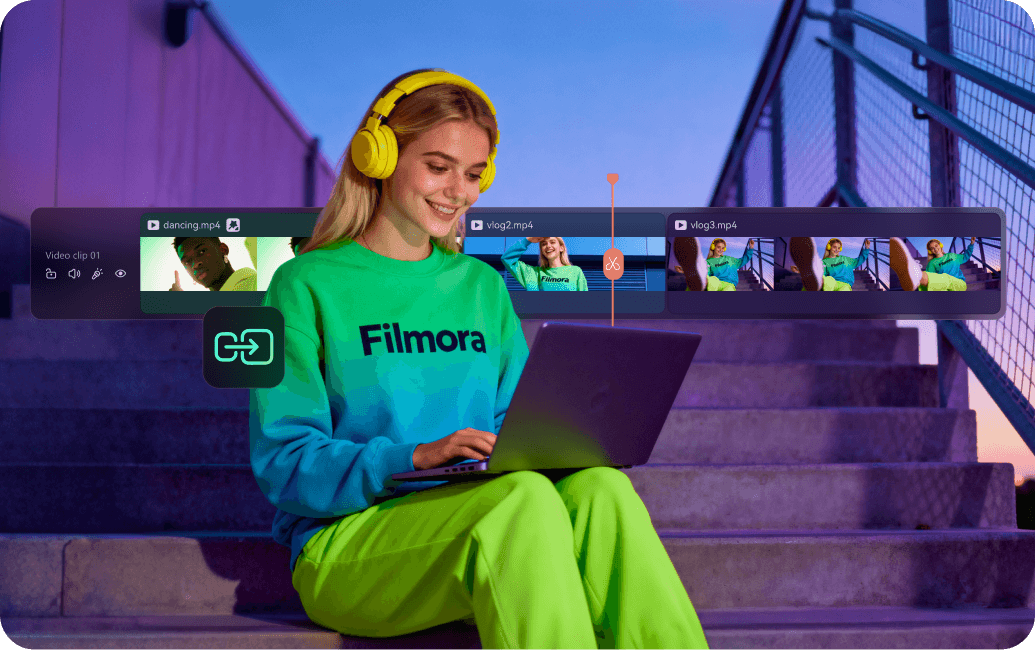
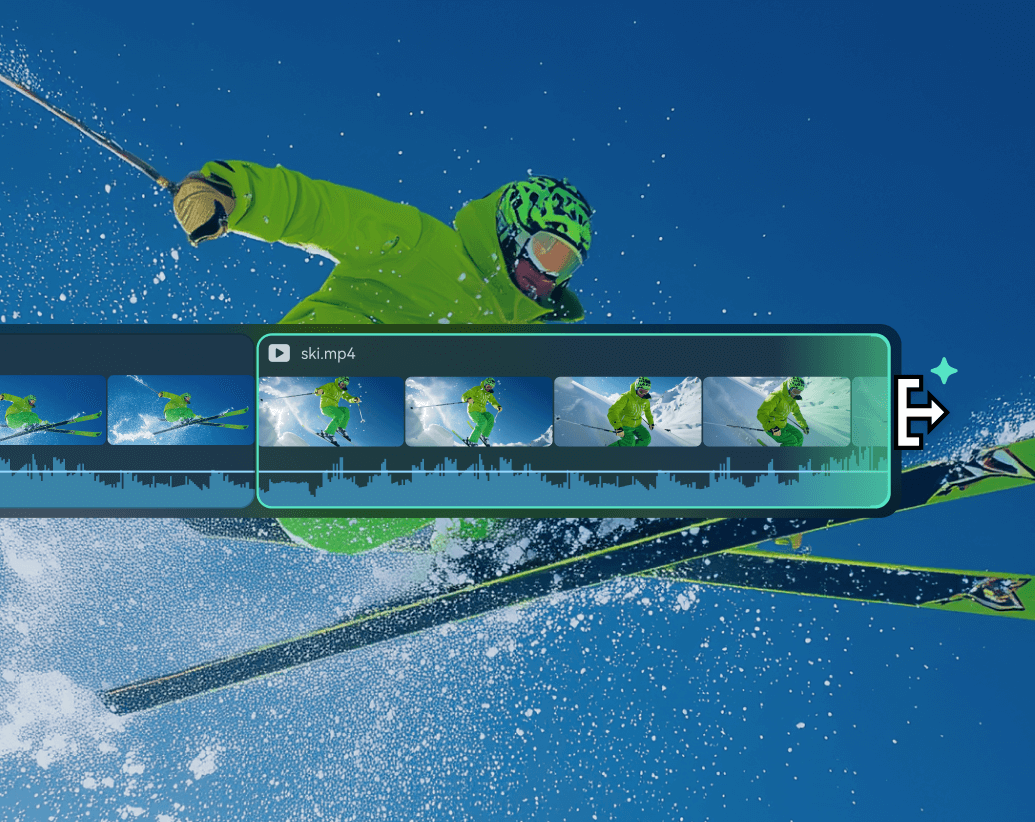
Magnetic Timeline for Faster Editing
Clips snap into place automatically, closing gaps and preventing overlaps so rough cuts stay fast, clean, and easy to adjust.
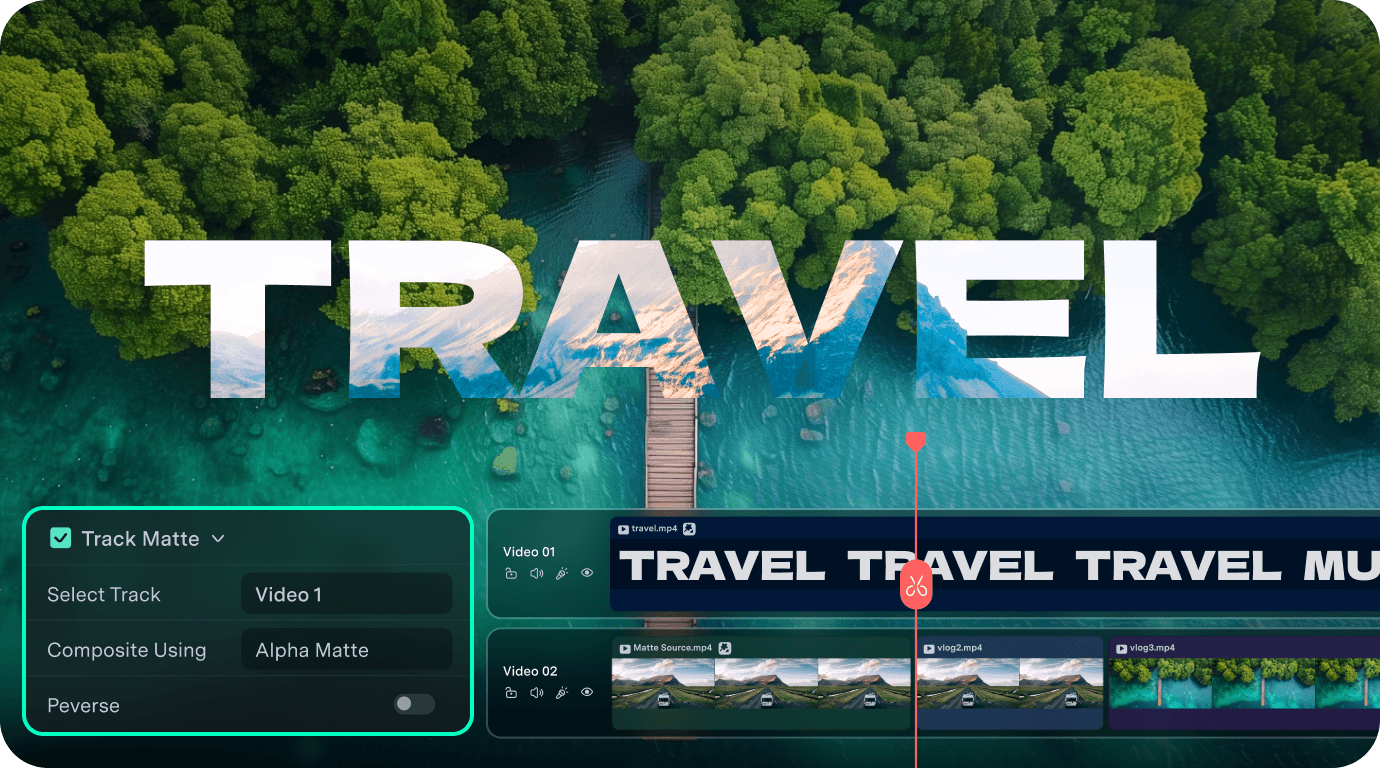
Create Advanced Composites with Track Matte
Use another video track as a matte source to build text fills, logo reveals, luma transitions, and layered effects with Alpha or Luma control.
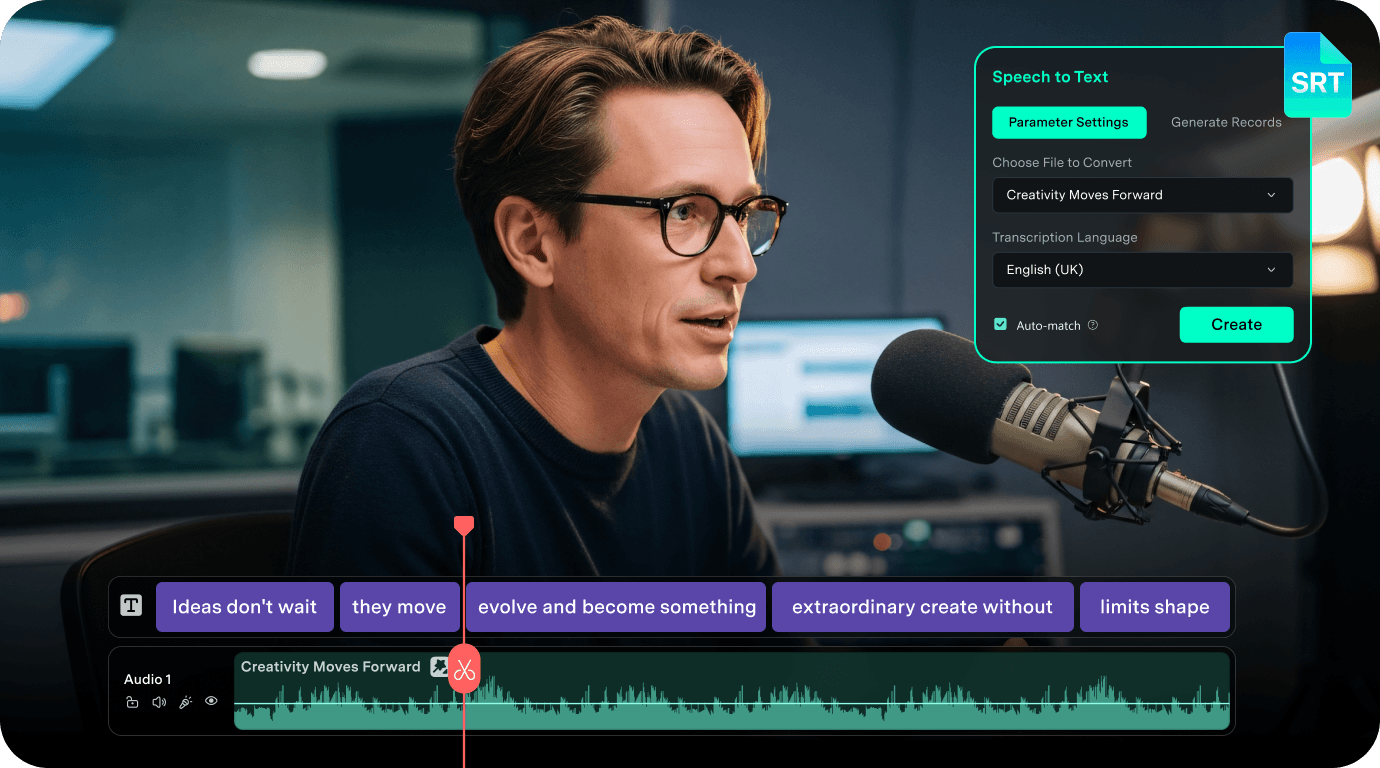
Organize Captions with Dedicated Subtitle Tracks
STT results and imported SRT / ASS files automatically land on dedicated subtitle tracks, making captions easier to manage, style, align, and export.
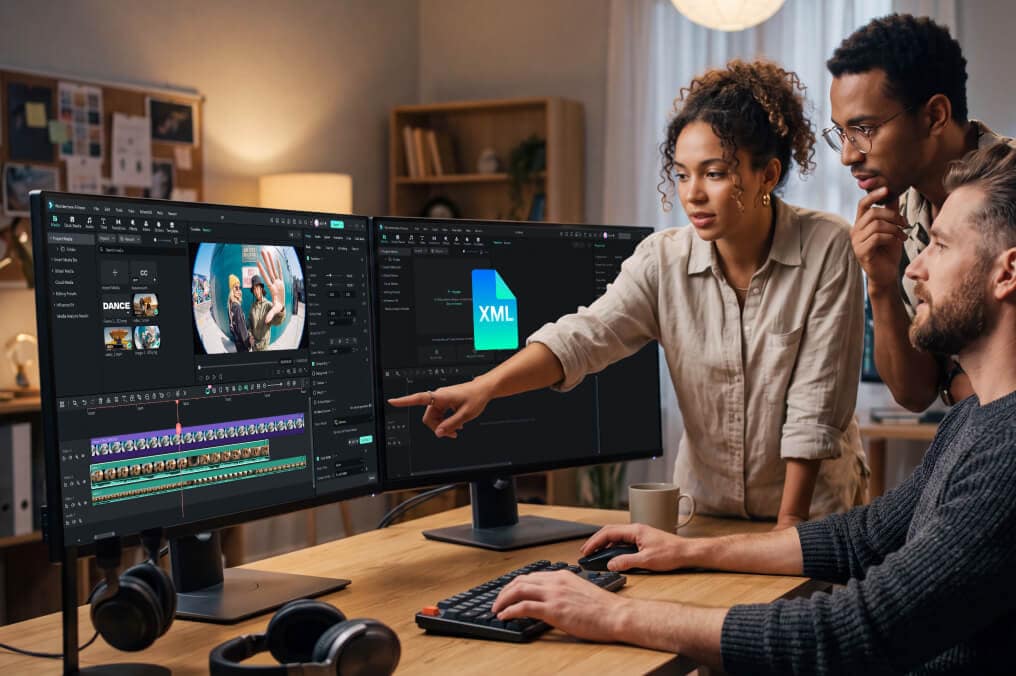
Move Timelines Between Editing Tools with XML
Import compatible XML timelines into Filmora, relink missing media when needed, then export FCP7 XML for handoff to Premiere Pro, DaVinci Resolve, and other supported NLE workflows.
Core Timeline Editing Tools for Every Project
Once your project is on the timeline, fine-tune every layer with the editing tools you use most—from multi-track control and frame-level precision to audio, compound clips, dual timelines, and AI.

Multi-Track Editing
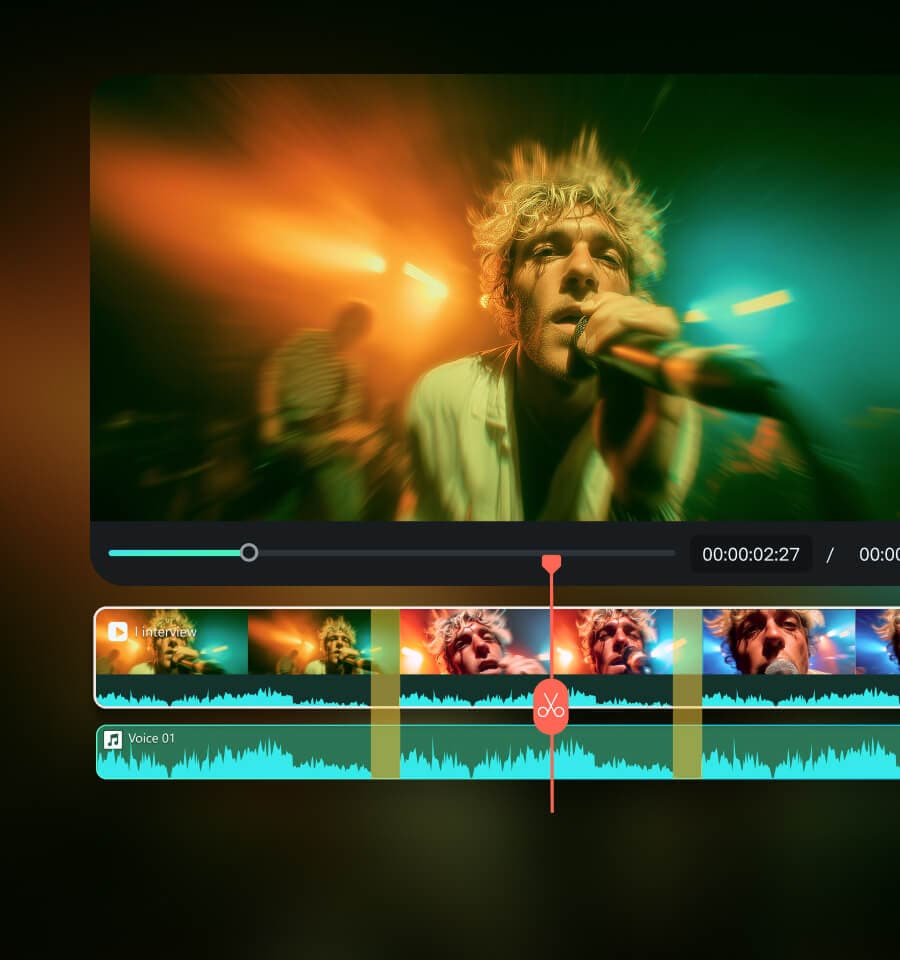
Layer video, audio, text, transitions, and effects on multiple tracks. Organize and combine elements in one timeline for richer storytelling.

Precision Editing Tools
Fine-tune edits with ripple, slip, and slide tools, or enter exact timecodes for frame-level changes. Perfect for projects where accuracy is essential.

Audio Timeline Control
Edit audio directly on the timeline with waveforms, keyframes, volume control, and precise synchronization between sound and visuals.

Simplify Complex Projects with Compound Clips
Combine multiple clips and tracks into a single compound clip to simplify complex timelines and reuse recurring sequences such as intros, outros, and branded layouts.

Dual Timeline for Complex Edits
Switch between a main timeline and a secondary timeline to review, compare, and restructure long-form or complex projects without losing context.

AI-powered Timeline Editing
How To Edit Videos on the Timeline in Filmora
From import to final handoff, Filmora keeps every stage of timeline editing in one clear, connected workflow.
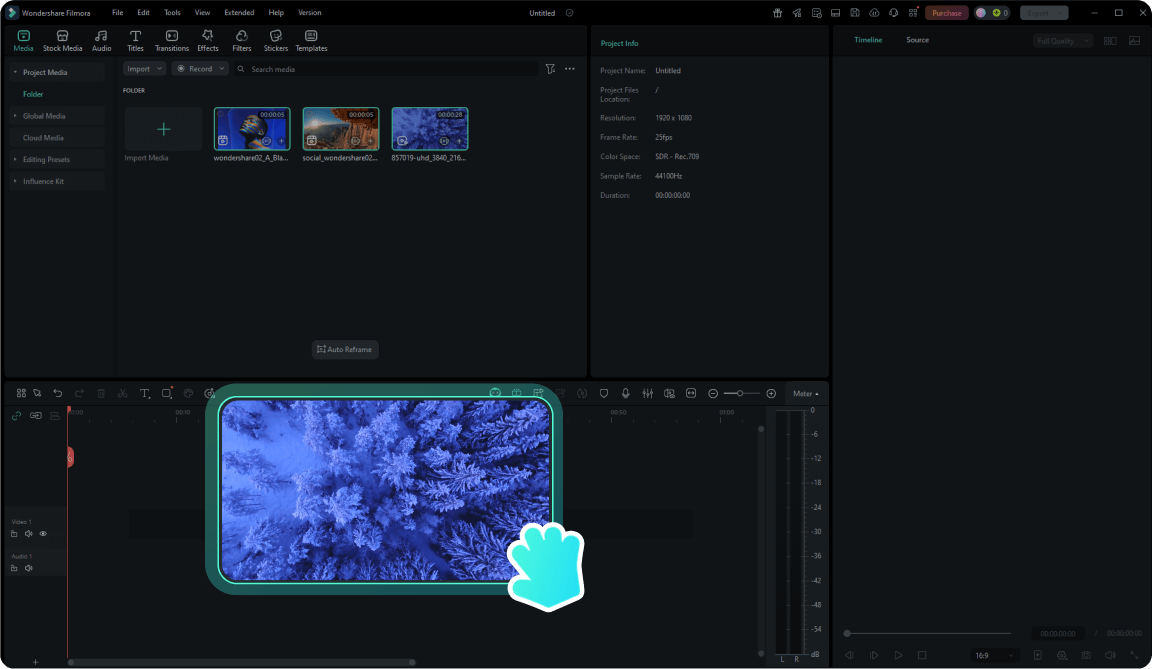
Step 1. Import Your Media or Timeline
Import video, audio, images, or a compatible XML timeline. Filmora restores supported timeline structures and helps Filmora restores supported timeline structures and helps you relink missing media when needed.
Step 2. Arrange Clips & Organize Your Timeline
Arrange clips across multiple tracks, trim and reposition content, and keep STT or imported subtitles organized on dedicated Subtitle Tracks.
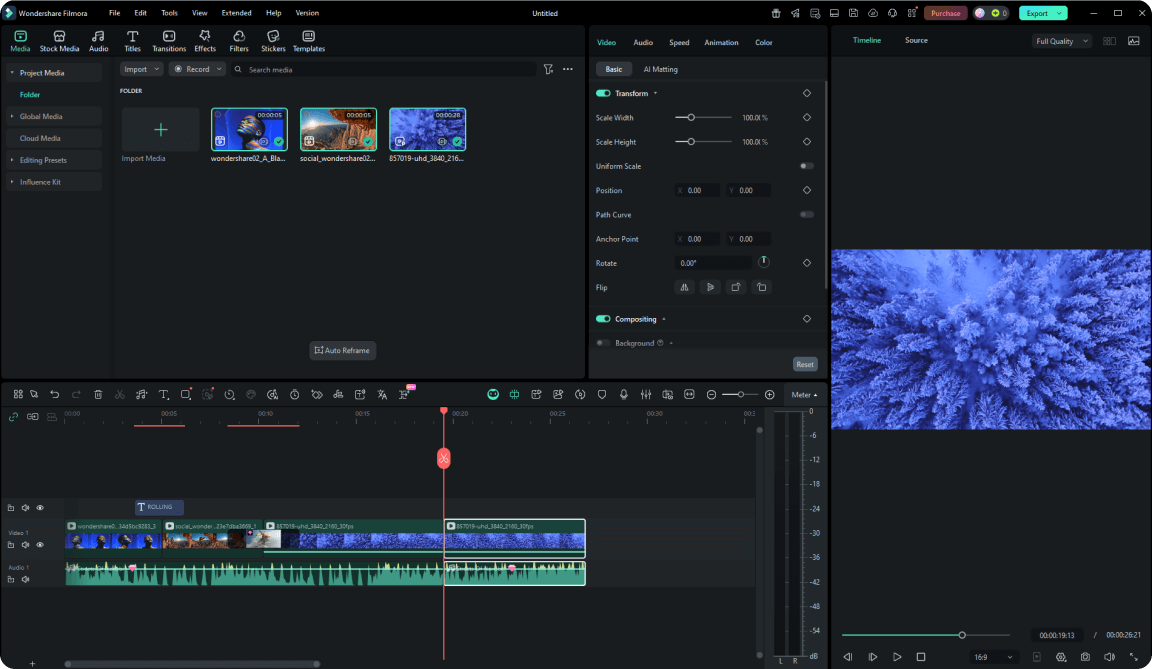
Step 3. Refine & Enhance Your Edit
Fine-tune cuts, adjust audio, add effects, and use Track Matte to create text fills, logo reveals, luma transitions, and other advanced composites.
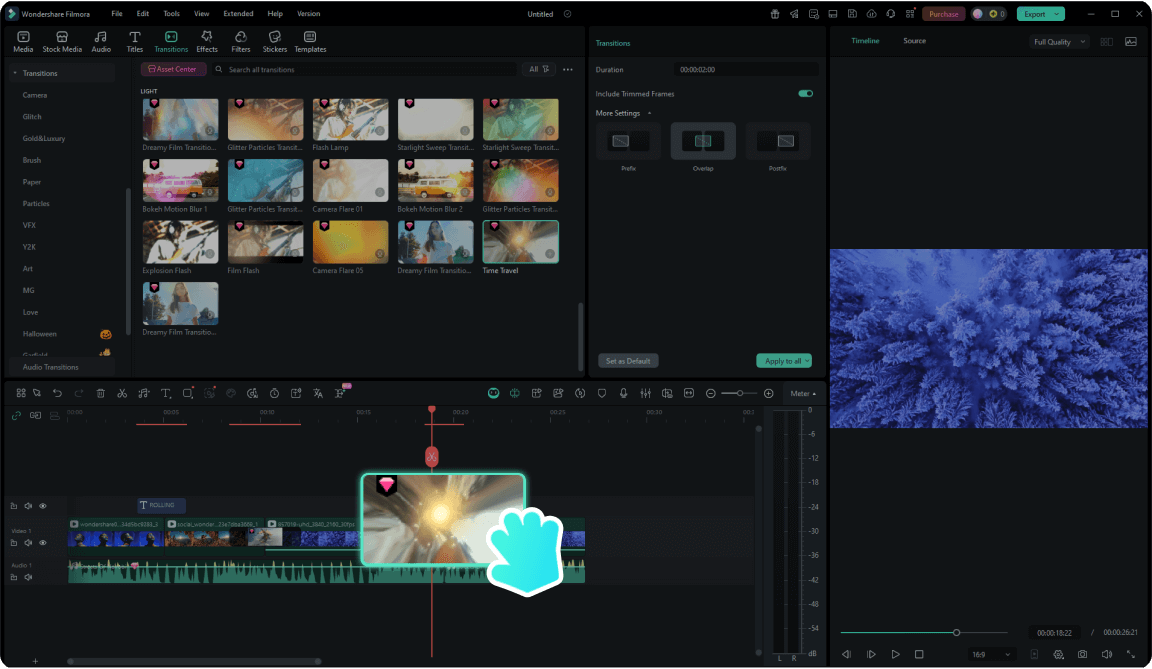
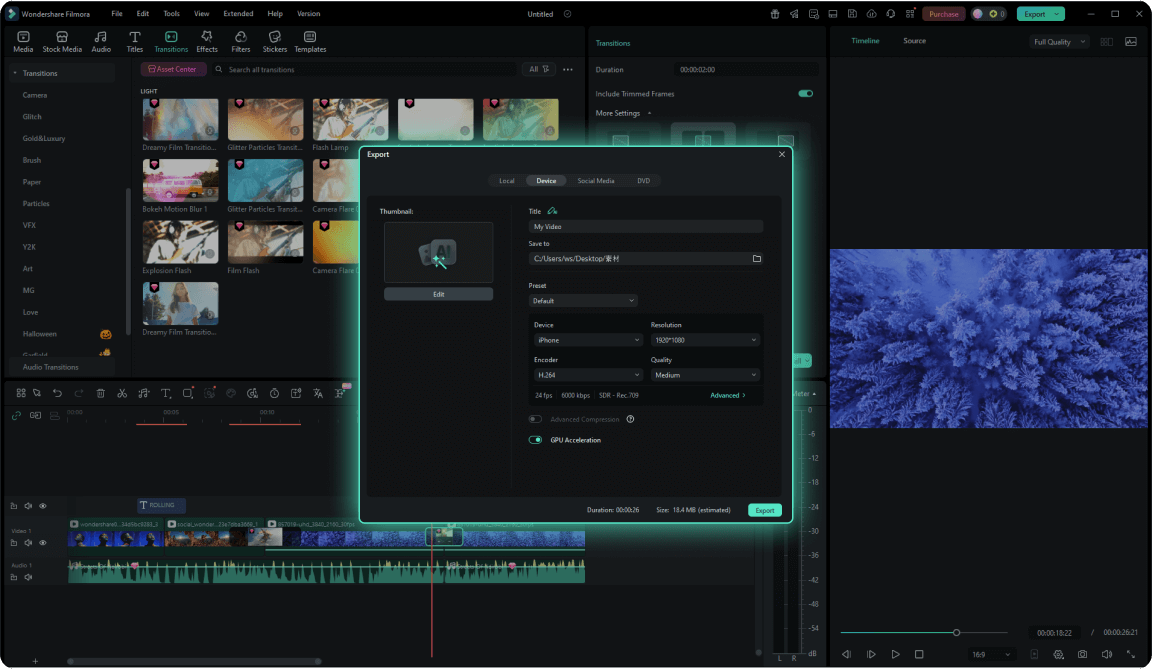
Step 4. Preview, Export & Hand Off
Preview your final edit, export your finished video, or export a compatible XML timeline when the project needs to continue in another editing workflow.
-
Step 1: Import Your Media or Timeline
Import video, audio, images, or a compatible XML timeline. Filmora restores supported timeline structures and helps Filmora restores supported timeline structures and helps you relink missing media when needed.
-
Step 2: Arrange Clips & Organize Your Timeline
Arrange clips across multiple tracks, trim and reposition content, and keep STT or imported subtitles organized on dedicated Subtitle Tracks.
-
Step 3: Refine & Enhance Your Edit
Fine-tune cuts, adjust audio, add effects, and use Track Matte to create text fills, logo reveals, luma transitions, and other advanced composites.
-
Step 4: Preview, Export & Hand Off
Preview your final edit, export your finished video, or export a compatible XML timeline when the project needs to continue in another editing workflow.
A Timeline Video Editor Made for Every Creator

Beginners Learning Video Editing

YouTubers and Vloggers

Educators, Trainers & Tutorial Creators
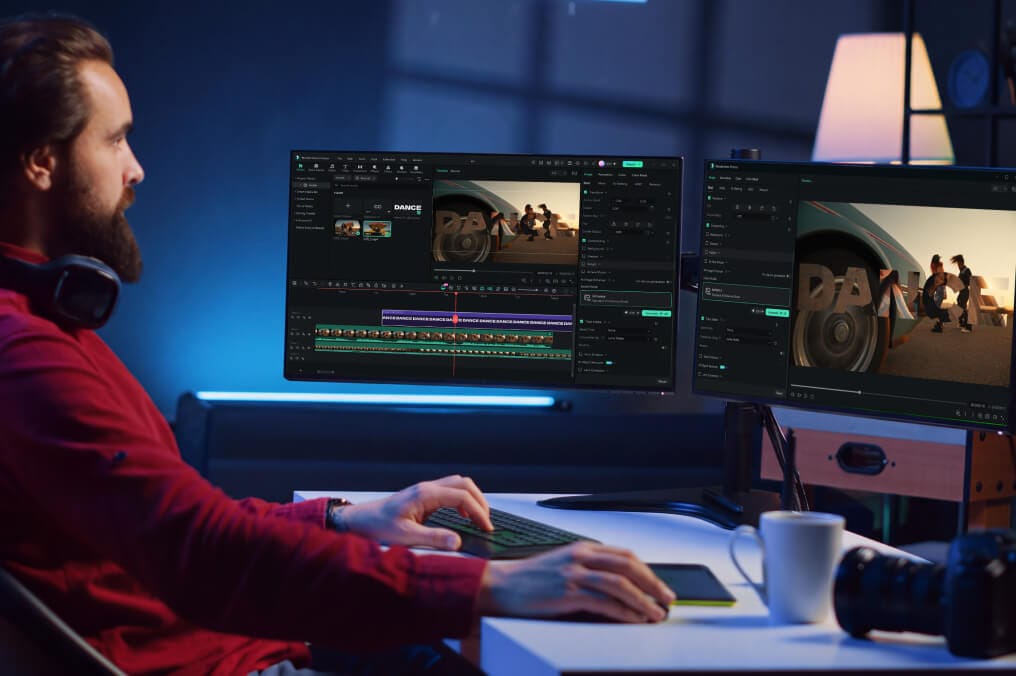
Filmmakers and Professional Editors
Marketing & Production Teams
Why Choose Filmora for Timeline Video Editing
Easy to Learn, Precise to Edit
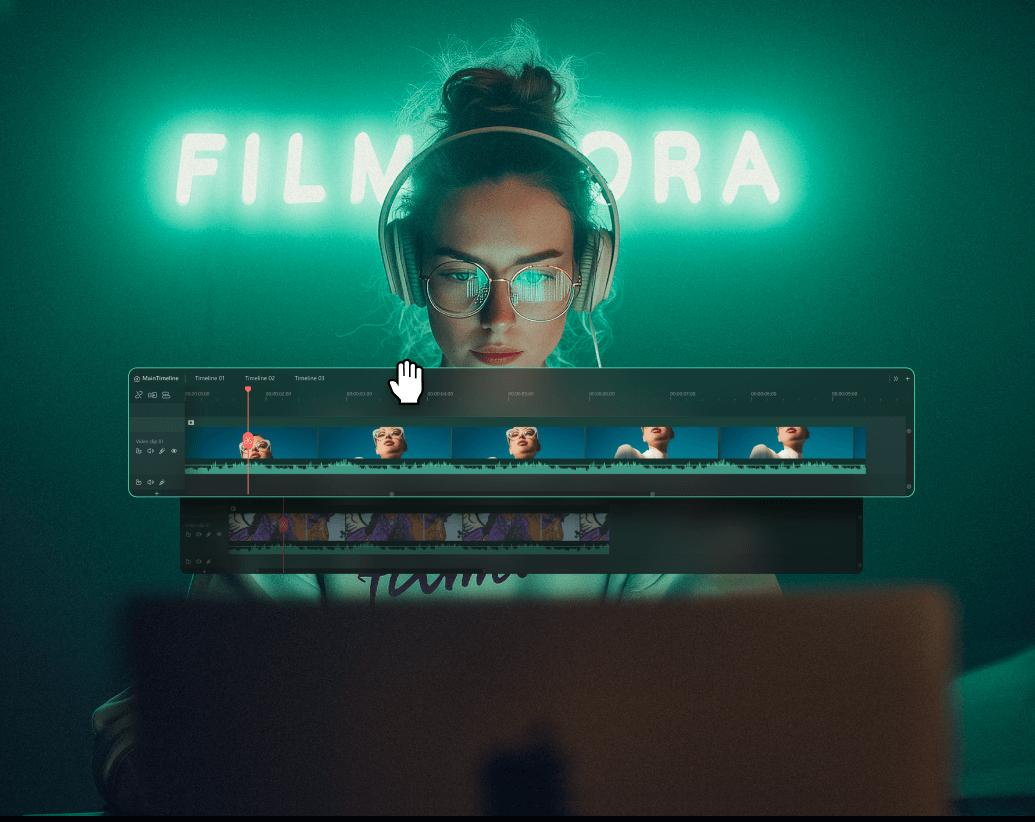
Easy to Learn, Precise to Edit
Start with intuitive drag-and-drop editing, then move into multi-track, frame-level, and precision tools as your projects grow.
Professional Control, Without the Complexity
Professional Control, Without the Complexity
Create advanced composites with Track Matte, organize captions on dedicated Subtitle Tracks, and manage complex projects with professional timeline tools—without relying on complicated node or layer
Open Workflow Across Editing Tools
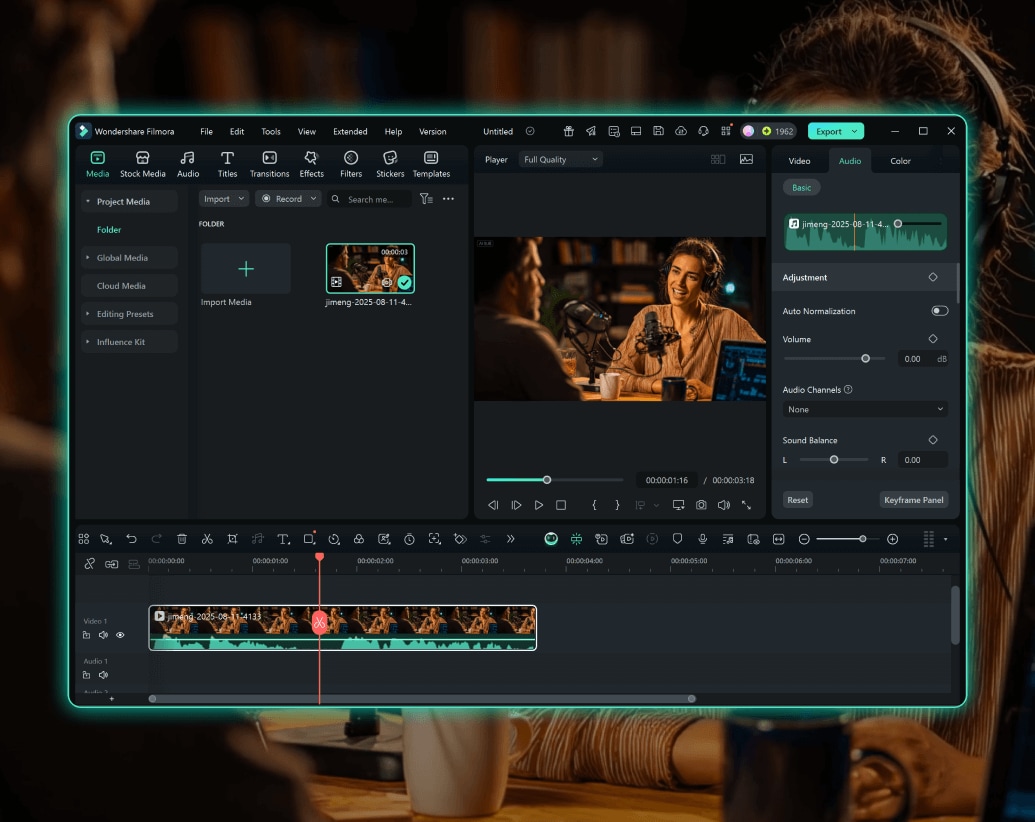
Open Workflow Across Editing Tools
Import compatible XML timelines into Filmora, continue editing and packaging, then export XML when your project needs to move into another editing workflow.
Learn More Tips & Tricks About Timeline Video Editor
FAQs About Timeline Video Editing
A video editing timeline is the workspace where video, audio, titles, captions, and effects are arranged in sequence across multiple tracks. Filmora combines an intuitive visual timeline with multi-track and precision editing tools for both simple and complex projects.
Yes. Filmora combines drag-and-drop editing, magnetic snapping, and a clear multi-track layout with more advanced tools you can grow into, including compound clips, dual timelines, and precision editing controls.
Yes. Filmora supports multi-track editing, frame-level precision, compound clips, dual timelines, Track Matte compositing, dedicated Subtitle Tracks, and XML timeline exchange for more advanced editing and production workflows.
Filmora's Magnetic Timeline automatically aligns clips as you move or insert them, helping close gaps and prevent unwanted overlaps so your sequence stays organized while you edit.
Yes. Filmora can import compatible XML timelines from editing workflows such as Premiere Pro, DaVinci Resolve, Final Cut Pro, and AI editing tools, then restore supported timeline structures for continued editing. For example, you can use an AI editing agent to create a rough cut, export it as a compatible XML timeline, and import it into Filmora for further editing, effects, captions, and final polish. Filmora can also export Final Cut Pro 7 XML for compatible NLE workflows.
Track Matte lets you use another video track as a matte source to control which parts of a clip are visible. You can use Alpha or Luma information to create effects such as video-filled text, logo reveals, and layered transitions directly in the Filmora timeline.
Yes. Speech-to-Text results and imported subtitle files such as SRT or ASS can be placed on dedicated Subtitle Tracks, helping you keep captions separate from video and audio while managing timing and styles more efficiently.
What Our Customers Say About Us
Discover More Powerful Editing Features in Filmora


A video editor for all creators.

Emma
Daniel
Sophia
James